
Teams using Vidsembly











AI Voice
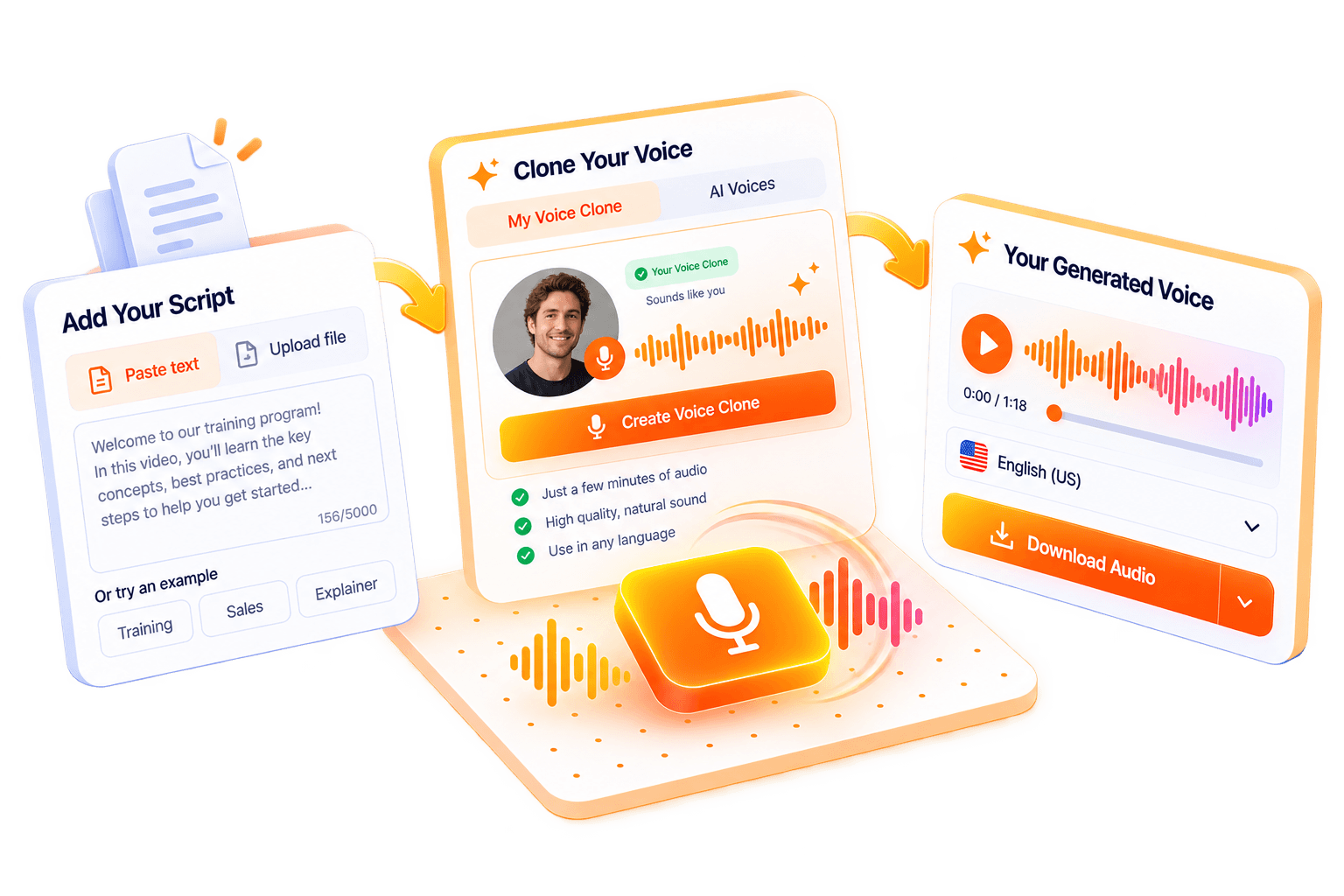
Clone your voice once, then turn any script into a voiceover.
Create a voice clone from a short sample (Free includes 1 clone), pick that voice in AI Voice, paste your script, and export a clip. Library AI voices are there when you want a different sound.
No card required · 30 free credits · Explore demo projects
Real vs. cloned voice
Play both clips to compare the original recording with its AI voice clone.
Real voice
Original recording
Cloned voice
AI voice clone
How it works
From upload to export in three steps
Click a step to view it larger
12 output languages
Generate narration in your language with library voices or your voice clone
- English
- Spanish
- Chinese
- Hindi
- German
- Italian
- Arabic
- French
- Dutch
- Japanese
- Korean
- Portuguese

Need narrated slides too?
Use Presentation to Video to turn a PowerPoint or PDF into a full video with the same voice options.
Narration voice
Hear the voices before you build
Preview standard and premium library AI voices across 12 languages and dialects. On Pro and Elite, you can also clone your own voice and use it for narration.
12 languages supported
Pick a language to preview its voices
Brian
English (United States) · Male
Ava
English (United States) · Female
Premium voices
Daniel
English (United States) · Male
Rachel
English (United States) · Female
Michael
English (United States) · Male
Sophie
English (United States) · Female
Real vs. cloned voice
Play both clips to compare the original recording with its AI voice clone.
Real voice
Original recording
Cloned voice
AI voice clone
What you get
Plan features for AI Voice: same Free, Pro, and Elite unlocks you see in the app.
Plans
See PlansFree
- 30 one-time credits
- Standard library AI voices
- 1 voice clone
🚀Pro
- 300 credits/month
- Premium library voices
- 3 voice clones
👑Elite
- 1200 credits/month
- Everything in Pro
- 5 voice clones
- Priority render speed (coming soon)
Related guides
Best AI voiceover tools (2026)
Buyer’s guide: library voices vs cloning, plus fair alternatives.
How to clone your voice for narrated videos
Clone once, then reuse your voice in AI Voice and across Vidsembly narration tools.
How to create multilingual narrated videos
Turn the same PowerPoint or PDF into narrated videos across 12 output languages.
Frequently asked questions
Who should use AI Voice?
Anyone who wants narration that sounds like them without re-recording every script: training intros, explainers, ads, course modules, and product demos. Create a voice clone once, then generate new clips from text.
What can I create with AI Voice?
Voiceover clips from a script in your cloned voice: paste or upload text, generate narration, preview, and export audio. Reuse the same clone in Presentation to Video and Content to Video, or pick a library AI voice when you want a different sound.
Can I use my own voice?
Yes. Free includes 1 voice clone; Pro includes 3 and Elite includes 5, so you can try cloning on Free before you upgrade. Record a short sample in the app to create your clone, then select it in AI Voice and other narration tools. Free and premium library voices are available too.
Do I need a microphone for every project?
No. You only need to record when you create or update a voice clone. After that, each new voiceover is generated from your script. If you use a library voice instead, you never need to record.
Which languages are supported?
AI Voice supports 12 output languages for narration, with free and premium library voices you can preview before you export.
When are credits used?
Generating a voiceover uses credits based on the length of the audio produced, with a minimum of one credit. Creating or updating a voice clone also uses credits as shown in the product when you start the clone flow.
How is AI Voice different from Presentation to Video?
AI Voice is for standalone voiceover clips from a script. Presentation to Video turns a PowerPoint or PDF into a full narrated video. Both use the same voice clone, so your slides and clips can sound like you.
Try AI Voice in Vidsembly
No card required · 30 free credits · Explore demo projects in the app.